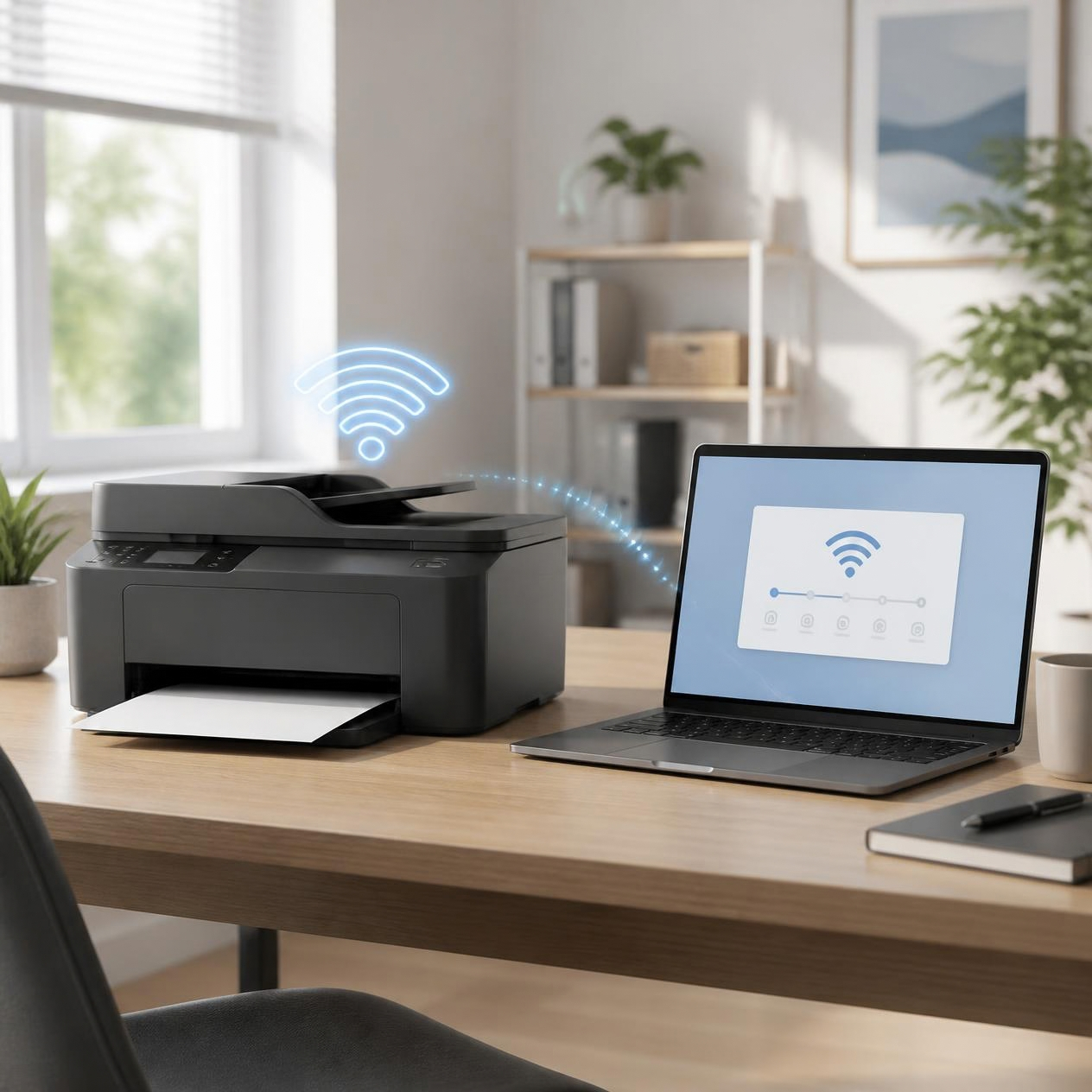
Quick overview
Use the points below as a simple roadmap. The detailed paragraphs that follow explain what to check, why it matters, and when to move to the next step.
- Start with the simplest physical or connection check.
- Confirm the device, setting, or software item you are actually troubleshooting.
- Make one change at a time and test the result before moving on.
Recommended order
- Identify the current symptom and note any message shown on screen.
- Check the basic connection, device status, and selected printer.
- Run a small controlled test and record what changes.
- Use the related guide below if the issue points to another area.
Confirm the network first
Before configuring the printer, confirm that another device can connect to the intended Wi-Fi network. Make sure you know the exact network name and password. Some printer models have specific wireless compatibility requirements, so consult the model documentation if the printer cannot see the network.
- Before configuring the printer, confirm that another device can connect to the intended Wi-Fi network.
- Make sure you know the exact network name and password.
- Some printer models have specific wireless compatibility requirements, so consult the model documentation if the printer cannot see the network.
Open the printer's network settings
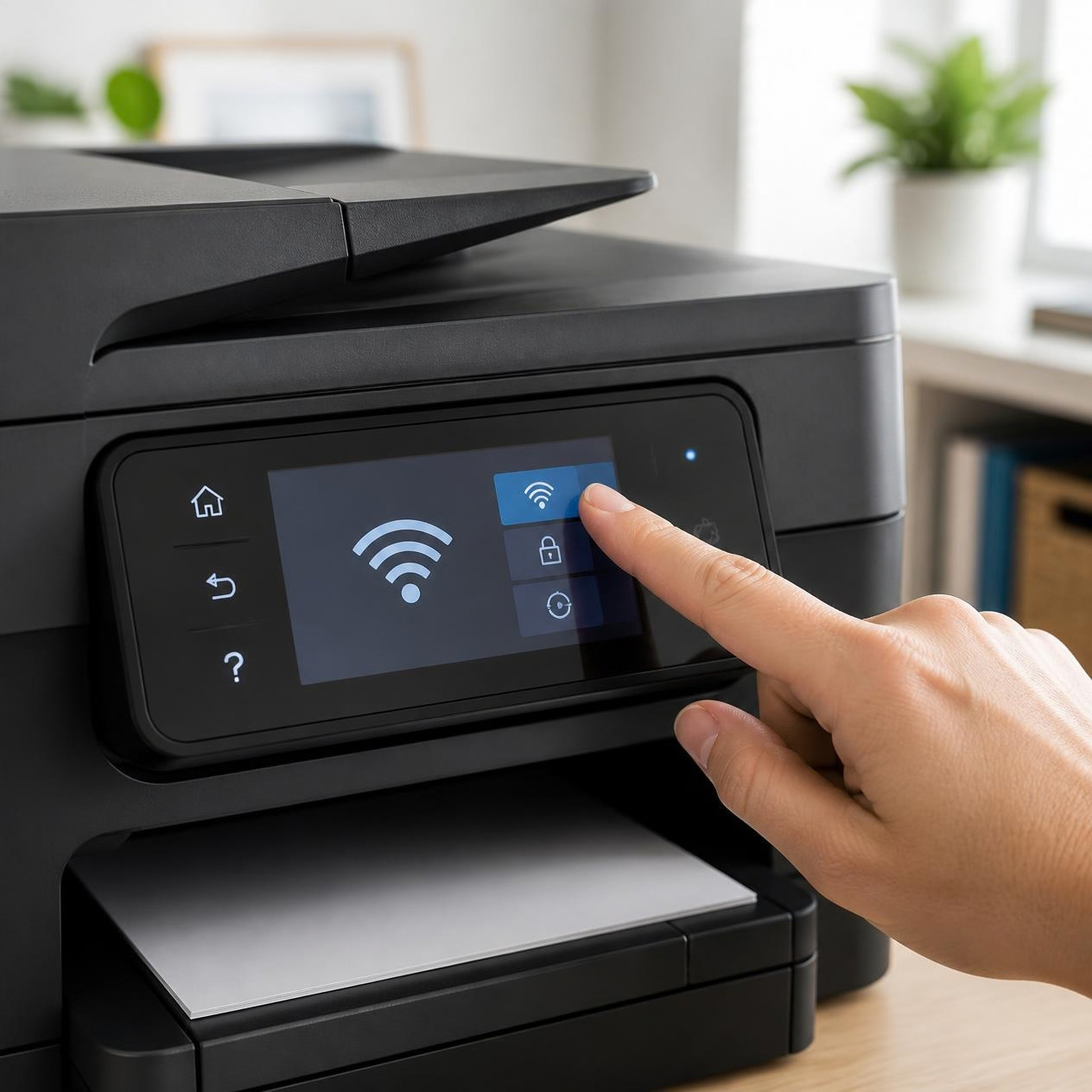
Use the printer display or control panel to find Network, Wireless, Wi-Fi, or Setup options. Many models provide a wireless setup wizard that scans for nearby networks. Select the option that matches your environment rather than changing advanced network settings unless the documentation tells you to.
- Use the printer display or control panel to find Network, Wireless, Wi-Fi, or Setup options.
- Many models provide a wireless setup wizard that scans for nearby networks.
- Select the option that matches your environment rather than changing advanced network settings unless the documentation tells you to.
Select the correct network
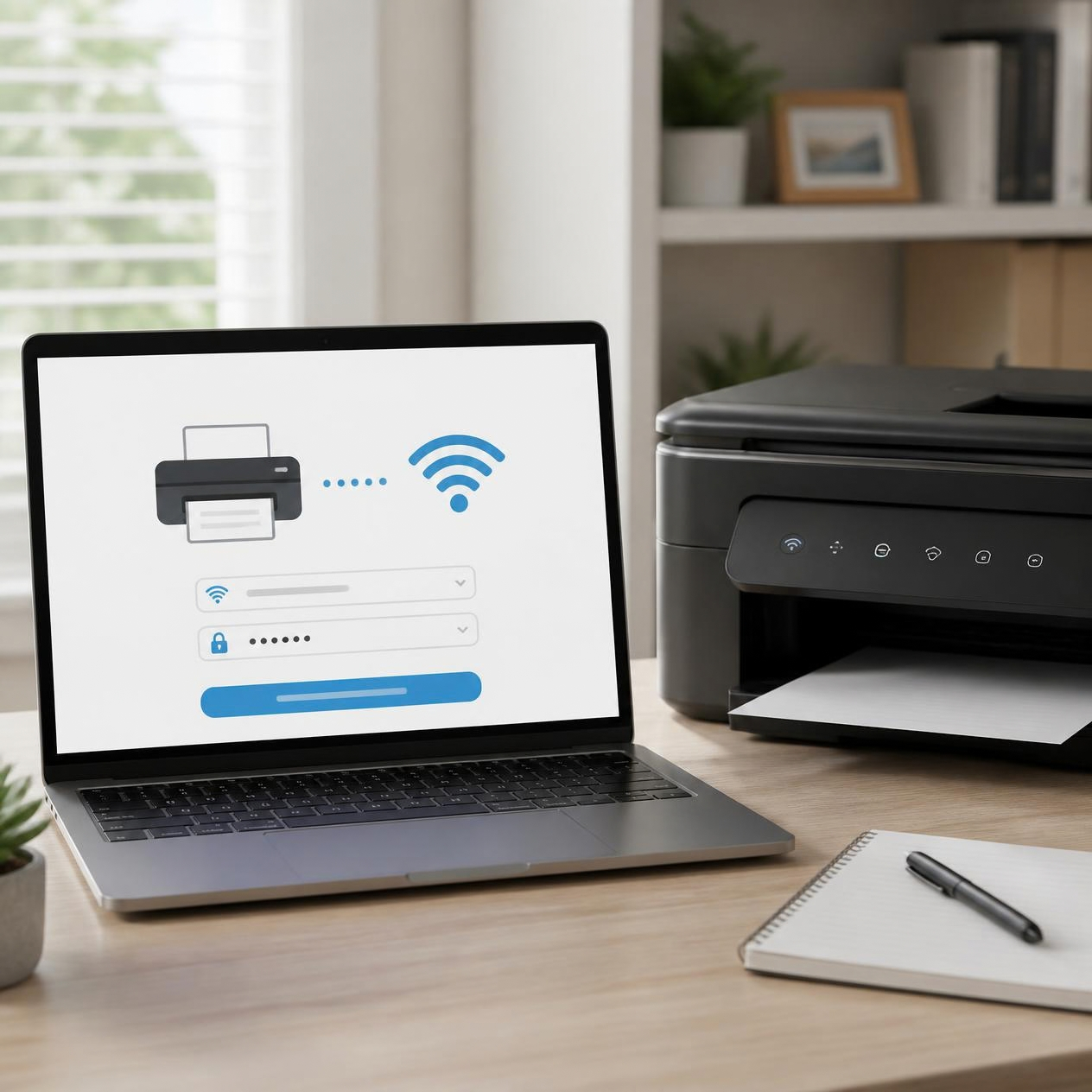
Choose the intended network from the available list and enter its password carefully. Passwords are case-sensitive. Give the printer time to establish the connection and look for a message, icon, or network status page confirming success. If the printer reports that the password is incorrect, recheck the credentials rather than repeatedly restarting the device.
- Choose the intended network from the available list and enter its password carefully.
- Passwords are case-sensitive.
- Give the printer time to establish the connection and look for a message, icon, or network status page confirming success.
Add the printer to your computer or phone
Once the printer is connected, open the printer settings on your computer or mobile device. Use the system's add-printer workflow and select the network printer that corresponds to your device. If the manufacturer provides an official application, it may offer additional setup or scanning features.
When the printer cannot connect
Restarting the printer and network equipment can resolve temporary connection problems. If the printer is far from the router, signal quality can also matter. Check whether the printer has a network status page and compare its reported connection with the network you expect. Office networks can have guest or client-isolation settings that prevent devices from communicating with one another.
Keep security in mind
Use the normal Wi-Fi credentials for your own network and avoid entering them into unverified websites. If an application asks for an account password, verify that it is the official manufacturer application or a trusted operating-system screen. When a network requires advanced authentication, ask the network administrator or follow the printer manufacturer's documented instructions.
A useful troubleshooting habit is to record what happened immediately before the problem started. A new router, operating-system update, driver installation, cable change, paper change, or account change can narrow the possibilities. Make one change at a time, test the result, and keep the original settings in mind so you can reverse an unsuccessful change.
Related printer guides
Continue with a related guide when you need a different part of the same setup or troubleshooting workflow.